

How to Use Google Maps Offline While Traveling
I learned this the hard way in a small town outside Salzburg, standing on a street corner with 2% phone battery, zero signal bars, and a rental car I had no idea how to get back to. My data roaming hadn’t kicked in, the hotel Wi-Fi password I’d scribbled on a napkin was useless three hours away, and Google Maps Offline just sat there spinning a little gray circle that never loaded.
That trip taught me something I now tell every friend before they travel: Google Maps Offline works perfectly fine without internet, but only if you set it up before you actually need it. Nobody tells you this until you’re the one standing on a corner in the rain trying to remember which direction the train station was.
So let’s actually walk through this properly not the textbook version, but the version based on what works, what doesn’t, and what I wish someone had told me before my first big trip abroad.
Why This Even Matters
Most people assume their phone “just works” everywhere. It doesn’t. International roaming can be brutal expensive, local SIM cards aren’t always easy to grab the second you land, and rural areas even in places like the US, Japan, or parts of Europe have dead zones you wouldn’t expect.
I’ve lost signal in the middle of Scotland’s Highlands, in rural Vietnam, and weirdly enough, in the basement parking garage of a hotel in Chicago. Google Maps Offline saved me every single time.
The good news? Google Maps Offline has had offline functionality for years now, and it’s genuinely solid. The bad news? Almost nobody downloads their maps ahead of time because it’s not something you think about until you’re already lost.
Things to Do in Istanbul for 3 Days (A Real Itinerary, Mistakes Included)
What Google Maps Offline Actually Does (and Doesn’t Do)
Before diving into the how-to, let’s be real about what you’re getting. Offline maps in Google Maps Offline let you:
- See the map itself (streets, buildings, landmarks) without data
- Search for addresses and places within that downloaded area
- Get turn-by-turn driving directions
- See your current location using GPS (this doesn’t need internet at all more on that below)
What it does NOT do well:
- No live traffic updates offline (obviously)
- Walking and biking directions work, but transit directions for buses/trains are spotty offline in many regions
- You can’t search for things outside your downloaded map area
- Restaurant reviews, photos, and “is it open now” info won’t update
I found this out the annoying way in Lisbon, trying to find a restaurant that had already closed down two months earlier. The offline map showed it as open because that info gets baked in at download time and doesn’t refresh until you’re back online.
Quick Reality Check: GPS Works Without Internet
This confuses a lot of people, so let me clear it up because it changed how I think about offline navigation entirely.
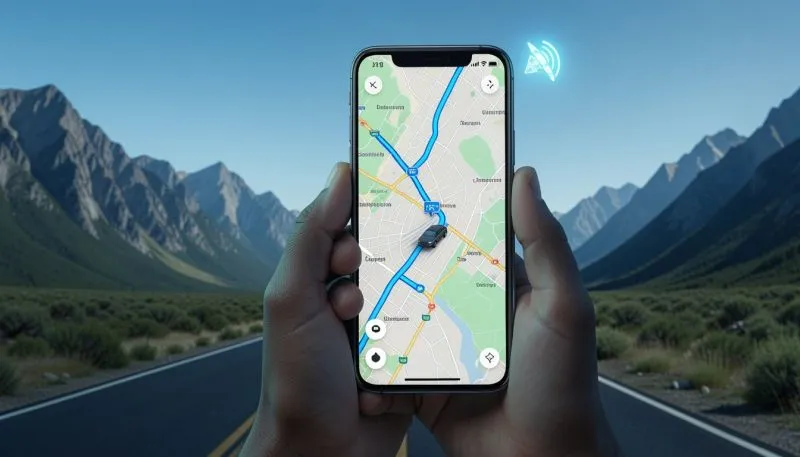
Your phone’s GPS chip talks to satellites, not to the internet. That little blue dot showing your location? That works completely offline, anywhere on Earth, as long as you have a clear-ish view of the sky.
What needs internet is pulling up the map data itself and calculating routes. So if you’ve already downloaded the map, your phone can use GPS to show exactly where you are on that downloaded map, and Google Maps Offline can calculate a route using data it already has stored. That’s the whole trick.
Step-by-Step: How to Actually Download Offline Maps
Here’s the process, and I’m including the small details that the official help pages tend to skip.
Step 1: Do this before you leave home, on Wi-Fi
Don’t wait until you’re at the airport with spotty terminal Wi-Fi. Download your maps the night before, on a solid connection. Offline map files for a decent-sized city can run anywhere from 100MB to 500MB+, and trying to pull that down on slow airport Wi-Fi is painful I’ve sat there watching a download bar crawl while my boarding group got called.
Step 2: Open Google Maps Offline and search your destination area
Type in the city, region, or area you’re heading to. Don’t just search the city center think about everywhere you might wander, including day trips.
Step 3: Tap your profile picture (top right), then go to “Offline maps”
From there, tap “Select your own map.” This lets you draw a custom box over the exact area you want, instead of being stuck with Google Maps Offline automatically suggested boundaries (which are sometimes way too small).
Step 4: Drag the box to cover more than you think you’ll need
This is the part people mess up constantly. I once downloaded just the historic center of a city in Italy, assuming that’s all I’d explore. Then a friend suggested a day trip to a nearby town, and surprise outside my downloaded zone, completely useless map. Now I always drag the box generously, covering surrounding towns and at least the route to/from the airport.
Step 5: Hit Download and wait
You’ll see a progress bar. Don’t close the app while it’s downloading I’ve had downloads fail mid-way and had to restart from scratch, which is annoying when you’re trying to walk out the door.
Step 6: Check it actually worked before you leave Wi-Fi
Turn on airplane mode while still at home, then open Maps and try searching for an address within your downloaded area. If it works, you’re set. If it doesn’t, redo the download better to find out now than abroad.
A Few Things I Wish I’d Known Sooner
Offline maps expire. Google Maps Offline sets them to auto-delete after about 15-30 days unless you’re connected to Wi-Fi and update them periodically. I once assumed my downloaded map from a trip two months prior would still be there for round two it wasn’t. Now I just re-download fresh maps a day or two before any trip, regardless.
Storage matters more than you’d think. If your phone is already running low on storage (looking at you, people with 64GB iPhones full of photos), the download can fail silently or get auto-deleted to free up space. Check your storage before downloading, especially if you’re planning to cover a big region.

You can rename your downloaded maps. This sounds minor, but if you’re downloading maps for multiple cities on a multi-stop trip, Google Maps Offline just labels them by region name, which gets confusing fast. Tap the three-dot menu next to a downloaded map and rename it something obvious like “Tokyo + Day Trips” so you’re not guessing later.
Search still has limits. Even within your downloaded area, very specific searches (like a tiny boutique shop name) sometimes won’t pull up if Google Maps Offline index doesn’t have great metadata for that listing. Landmarks, addresses, and major businesses work great. Random small businesses can be hit or miss.
Is Turkey Safe to Visit in 2026? Here’s What Nobody Tells You Before You Book
Real Scenario: How I Use This on an Actual Trip
Let me walk you through how this looked on a trip to rural Croatia last year, because the theory is one thing but seeing it in practice helps.
Before leaving, I downloaded a box that covered Split, Dubrovnik, and basically the entire coastal road between them, plus a chunk inland in case we took detours. That ended up being smart, because we did take a random detour to a waterfall recommended by a local that wasn’t even on my original plan.
During the drive, my phone had no signal for probably 40% of the route these coastal mountain roads eat cell signal for breakfast. But Google Maps Offline kept showing my blue dot moving along the road in real time, recalculating when I missed a turn, and giving voice directions the entire time. My travel partner, who hadn’t downloaded the offline map, had a blank gray screen the whole drive and just followed my phone instead.
That’s the difference offline maps make. It’s not a backup plan for international or rural travel, it should basically be your primary plan.
Common Mistakes People Make (I’ve Made Most of These)
Mistake #1: Downloading the map too late
Downloading at the gate, five minutes before boarding, on weak airport Wi-Fi, is a recipe for an incomplete download. Do it the night before at home.
Mistake #2: Drawing too small a download area
People download just the city they’re staying in and forget about the airport route, nearby day trips, or the drive from the rental car place. Go bigger than you think you need.
Mistake #3: Assuming transit directions work fully offline
Bus and train routing offline is unreliable in a lot of places. If you’re depending on public transit in a foreign city, screenshot the relevant routes and Google Maps Offline schedules as a backup, or use a dedicated transit app for that city if one exists.
Mistake #4: Forgetting battery management
Offline maps with GPS running constantly drains battery fast, especially with the screen on for navigation. I always carry a small power bank now the Anker ones are reliable and cheap because nothing kills a “lost but found my way” success story faster than a dead phone five minutes before reaching the hotel.
Mistake #5: Not testing before you actually need it
Always test in airplane mode before you leave Wi-Fi, like I mentioned earlier. It takes thirty seconds and saves you from a nasty surprise later.
Mistake #6: Relying on outdated map data for business hours or open status
If a restaurant or shop’s hours matter, don’t fully trust the offline version. That info was frozen at download time and your destination’s “open now” Google Maps Offline status might be wrong.

A Few Extra Tools That Pair Well With This
While Google Maps Offline is solid for getting from point A to point B, I usually pair it with a couple other things depending on the trip:
- Maps.me or Organic Maps these use OpenStreetMap data and are sometimes more detailed for hiking trails or rural paths than Google Maps Offline mode. I’ve used Organic Maps in places like the Dolomites where hiking trail detail mattered more than street navigation.
- A physical backup sounds old-school, but a screenshot of your hotel address, written in the local language, has saved me more than once when trying to show a taxi driver where I needed to go and my phone was at 3% battery.
- eSIMs apps like Airalo let you grab a local data eSIM before you even land, which honestly reduces how much you’ll even need offline maps in cities (though I’d still download them as backup, always).
Does This Work for Walking, Not Just Driving?
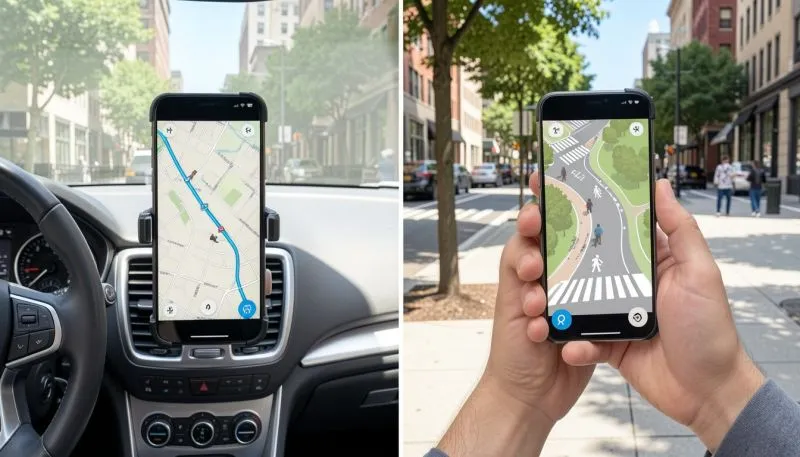
Yes, and honestly walking directions offline are where this feature shines the most for me. Driving directions on unfamiliar highways can get confusing if you miss an exit and the offline recalculation lags a bit. But walking through a foreign city’s old town, Google Maps Offline with narrow alleys and no clear street signs? That’s exactly where Google Maps Offline becomes the difference between enjoying your trip and feeling anxious the whole time.
I navigated almost the entire old quarter of Porto on foot using only offline maps, no data the entire week, and it worked without a single hiccup. The blue dot tracked my walking pace accurately, and turn suggestions appeared right on time.
Adventure Travel Insurance Requirements: What I Learned the Hard Way
What About Android vs iPhone Any Difference?
Functionally, no the offline map feature works the same way on both. The menu navigation is nearly identical (profile icon → offline maps → select your own map). The one small difference I’ve noticed is that iPhone tends to be slightly stricter about auto-deleting offline maps to save storage if your phone is nearly full, while Android gives you a bit more breathing room. Either way, just check before your trip rather than assuming.
Final Thoughts
The thing about Google Maps Offline is that it’s one of those features that feels almost invisible until the exact moment you desperately need it and then it feels like a small miracle. I’ve gone from anxious, phone-waving tourist standing on street corners to someone who walks confidently through cities I’ve never been to before, simply because I spent five extra minutes the night before my trip downloading the right map.
It’s not glamorous advice. It won’t make your trip more exciting. But it’s the kind of practical thing that quietly prevents the worst parts of travel the stress, the wasted time, the arguments about which way to turn from ever happening in the first place.
So next time you’re packing for a trip, do yourself a favor. Open Google Maps Offline, download the area you’re heading to (and then some), test it in airplane mode, and stop worrying about whether you’ll have signal when it matters. You probably won’t. And now you won’t need to.

Michael James is an American travel writer and Europe visa specialist with 7+ years of experience helping U.S. citizens stay longer in Europe. Through real conversations with digital nomads, retirees, and expat families, he delivers clear, no-fluff guides on the latest 2026 Schengen rules, ETIAS, and the best long-stay visas. Follow his practical advice at TravelTipHub.